Skip to content

Ultimate IPTV Setup Guide (2026): Install IPTV on Any Device
This IPTV SETUP GUIDE helps you install and configure IPTV in minutes using Xtream Codes API (recommended) or M3U. Choose your device below to open the correct tutorial with screenshots. You can also visit our Home page, read the full IPTV UK guide, or review our About Us, Privacy Policy and Terms of Use.
Choose your device
IPTV SETUP GUIDE: Smart TV (Samsung / LG)
- Open Samsung Apps or LG Content Store.
- Search for IPTV Smarters (or a compatible IPTV player) and install it.
- Launch the app and select Add New User.
- Choose Xtream Codes API (best) or M3U Playlist.
- Enter your Server URL, Username and Password (sent after subscription).
- Open your profile → channels, movies and series will load.

IPTV SETUP GUIDE: Android TV / Google TV
- Open Google Play Store and search for IPTV Smarters.
- Install the app → open it → tap Add New User.
- Select Xtream Codes API (recommended) or M3U.
- Enter your Server URL, Username and Password.
- Open your new profile → wait for channels and VOD to sync.
IPTV SETUP GUIDE: Firestick (IPTV Smarters Pro)
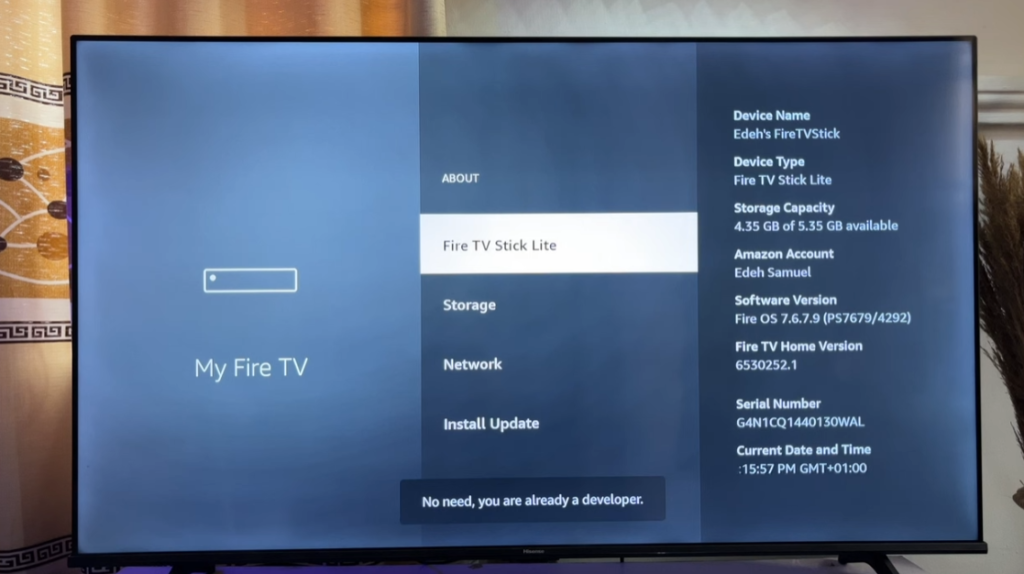
- Go to Settings → My Fire TV → About.
- Select your device name and press OK (center button) 7 times to enable Developer Options.
- Go back → open Developer Options → enable Install unknown apps.
- Install Downloader from the Amazon Appstore (orange icon).
- Open Downloader → Browser → enter: https://www.iptvsmarters.com/smarters.apk
- If prompted: Settings → Install unknown apps → enable Downloader → then install IPTV Smarters.
- Open Smarters → Add New User → Xtream Codes API → enter your details → load channels.
IPTV SETUP GUIDE: MAG Box (Portal Method)
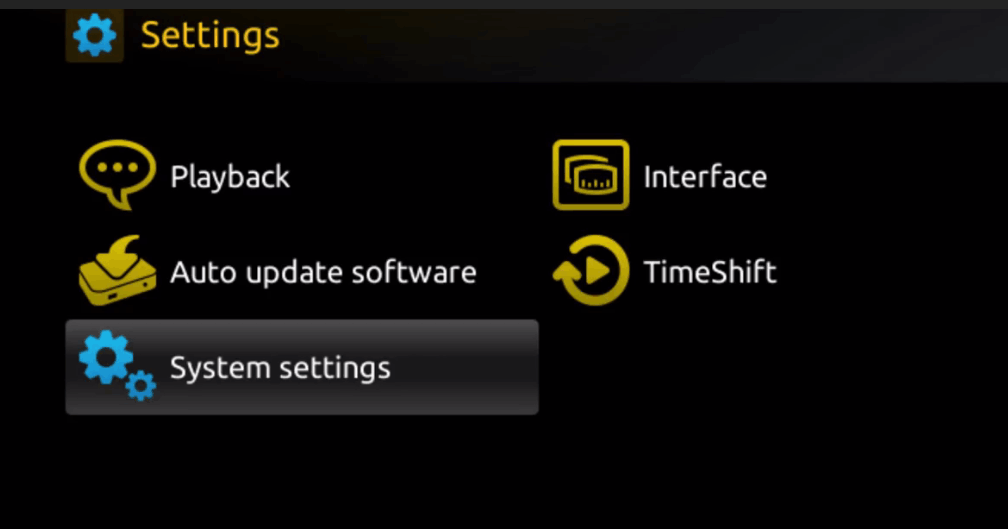
- From the main portal screen, open Settings (press SETUP/SET on the remote).
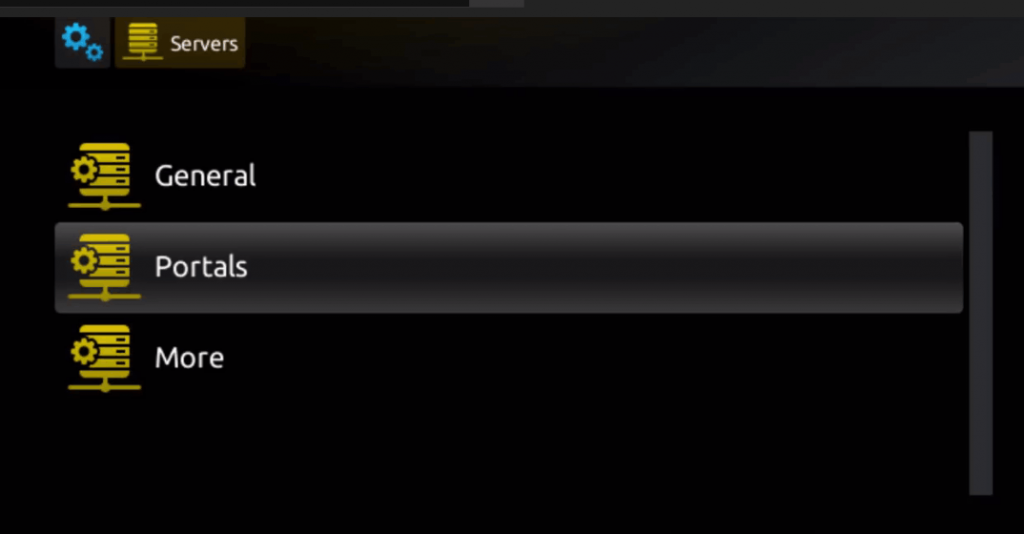
- Go to System settings → Servers → Portals.
- In Portal 1 name, type any name (example: IPTV).
- In Portal 1 URL, paste the Portal URL we send you.
- Press OK to save → press EXIT → reboot the box.
IPTV SETUP GUIDE: Apple TV / iOS (XC API)
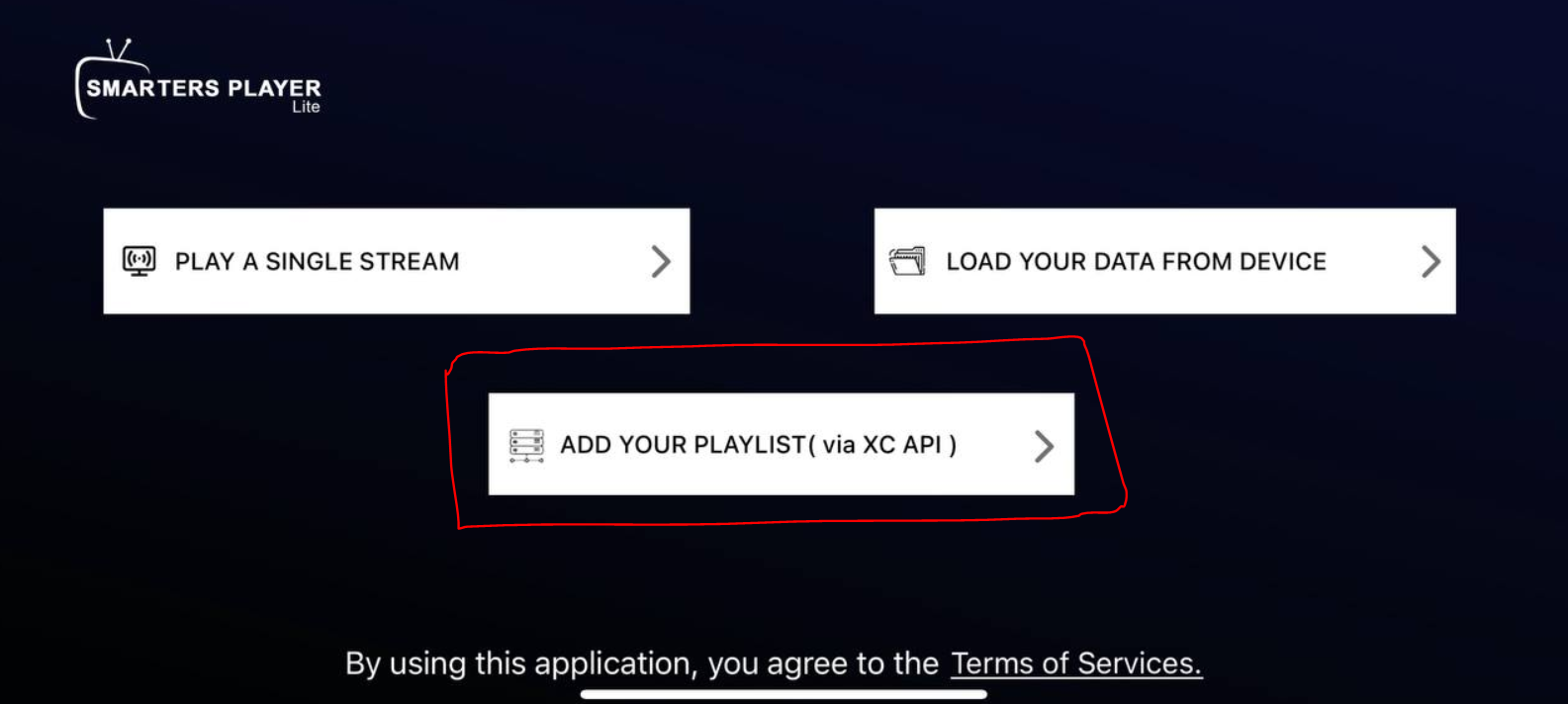
- Download the app from Apple: Smarters Player Lite
- Open the app → choose XC API → continue.
- Enter any Profile Name.
- Enter Username, Password, and Server URL (from your subscription email).
- Tap Add User → wait for channels and VOD to load.

IPTV SETUP GUIDE: Windows (IPTV Smarters for PC)
- Download the installer: IPTV Smarters Pro (Windows)
- Install and open the app.
- Enter any Profile Name.
- Enter your Username, Password, and Server URL (from your email under Xtream Codes API).
- Click Add User → your content loads.

If you’re new to IPTV, this IPTV SETUP GUIDE is designed to make installation simple, fast and beginner-friendly. Follow the steps for your device, then log in using the details you received after subscribing. For company information and policies, visit About Us, Privacy Policy and Terms of Use. You can also return to the Home page or read our complete IPTV UK guide.
This page is your complete IPTV SETUP GUIDE for Smart TV, Android TV, Firestick, MAG, Apple TV and Windows. Our IPTV SETUP GUIDE focuses on the most reliable login method (Xtream Codes API) while still supporting M3U when needed. If anything looks different on your device, use the WhatsApp button above and mention your model—this IPTV SETUP GUIDE will still apply and we’ll help you finish the setup quickly.