Skip to content

Firestick IPTV: Best Settings for Smooth Streaming (2026)
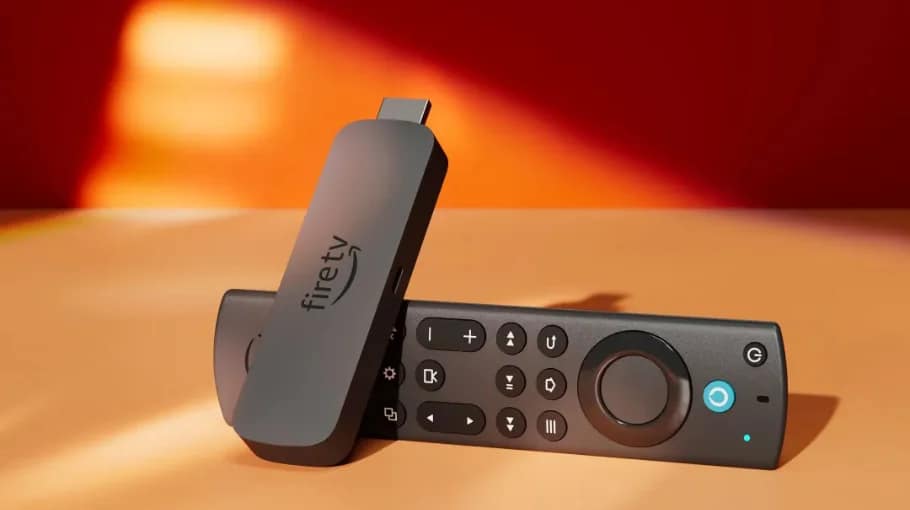
Firestick IPTV is brilliant when configured properly, but it’s rubbish on default settings. I’ve optimized hundreds of Amazon Firestick IPTV setups, and the difference is massive.
If you want the complete overview for the UK (providers, trials, stability checks, and setup), keep this open: IPTV UK guide.
For the main hub and updates across the site, you can always return to IPTV Smarters Pro HD.
If your issue is mainly freezing or stutter (not setup), use this step-by-step: IPTV buffering.
If nothing loads anywhere and you suspect a provider outage, check: IPTV down.
Why Firestick IPTV Is Popular
Understanding why Amazon Firestick IPTV dominates helps you maximize its potential. This is exactly why Firestick IPTV remains one of the easiest, best-value streaming setups.
Affordable Hardware
Firestick costs £30–£50, which is much cheaper than many Android boxes (£80–£150) or upgrading a Smart TV. Amazon Fire TV Stick offers excellent value for IPTV streaming.
The 4K version supports high-quality streaming. The regular version handles HD perfectly fine for most IPTV.
Easy Setup Process
Setup takes 10–15 minutes: plug into HDMI, connect Wi-Fi, install apps. No technical knowledge required. Follow the steps and you’re streaming.
Compact and Portable
It fits in your pocket: hotels, holiday homes, friends’ houses—any TV with HDMI + Wi-Fi works. Perfect for travelers who want their IPTV service on any screen.
Complete Firestick IPTV Setup Guide
Starting from scratch? This Firestick IPTV setup checklist walks through everything step-by-step.
Step 1: Initial Firestick Configuration
- Plug Firestick into TV HDMI port
- Connect power adapter to mains
- Turn on TV and select correct HDMI input
- Follow on-screen setup (language, Wi-Fi, Amazon account)
- Complete the initial update if prompted
Step 2: Enable Apps from Unknown Sources
Critical for setup because many Firestick IPTV apps aren’t in the Amazon Appstore.
- Settings > My Fire TV > Developer Options
- Install Unknown Apps > Turn On
- Enable for Downloader (installed next)
- Confirm the warning message
Step 3: Install Downloader App
Downloader lets you install IPTV apps not available in the Amazon store.
- Search icon > Type “Downloader”
- Select Downloader by AFTVnews
- Download and Install
- Open Downloader when installation completes
If you prefer a dedicated install walkthrough for IPTV Smarters on Firestick, read: IPTV Firestick.
Best Firestick IPTV Apps for 2026
Choosing the right Firestick IPTV apps makes a massive difference. These options are tested, reliable, and work well as a Firestick IPTV player.
IPTV Smarters Pro
Most popular IPTV player for Firestick: clean interface, excellent features, works with most providers. If Smarters is crashing or stuck, use: IPTV Smarters not working.
Quick installation:
- Open Downloader
- Enter URL: iptvsmarters.com
- Download APK file
- Install when the download completes
Best features:
- EPG support with timeline
- Recording capability
- Parental controls
- Multi-playlist support
TiviMate
Premium Firestick IPTV player. Costs about £4–£5/year but worth it for serious users. If you want a dedicated deep-dive, see: TiviMate IPTV Player.
- Best EPG implementation
- Channel grouping and sorting
- Picture-in-picture mode
- Smoother interface than many alternatives
Perfect Player
Free alternative for Firestick IPTV. Lightweight and fast—great for older Firestick models with limited resources.
OTT Navigator
Another strong option: good EPG support, good organization, and works well on Firestick hardware.
Want more app/player comparisons? Use: Best IPTV player.
Critical Firestick Settings for IPTV
Default settings aren’t optimized for Firestick IPTV streaming. Change these to improve smoothness and stability.
Disable Data Monitoring
Data monitoring consumes resources and can slow streaming.
- Settings > Preferences > Data Monitoring
- Turn Off
- Restart Firestick
Disable Featured Content and Notifications
Featured content and notifications interrupt streaming and waste resources.
Featured Content: Settings > Preferences > Featured Content > Turn Off
Notifications: Settings > Preferences > Notification Settings > Turn Off All
Adjust Display Settings
Match output to your TV capabilities for best quality streaming.
- Settings > Display & Sounds > Display
- Video Resolution > Set to TV’s maximum (1080p or 4K)
- Dynamic Range Settings > HDR10+ if TV supports it
- Calibrate display if option available
Configure Screen Saver Settings
Prevent Firestick sleeping during long viewing sessions.
Settings > Display & Sounds > Screen Saver > Start Time > Set to Never (or longest available).
Network Optimization for Firestick IPTV
Network quality impacts Firestick IPTV more than anything else. If you want smooth playback, fix the network first.
Use Ethernet Adapter (Best Solution)
Wi-Fi causes a huge percentage of buffering. An ethernet adapter for Firestick eliminates Wi-Fi interference completely.
Setup:
- Get an adapter with power input (official or compatible)
- Connect ethernet cable from router to adapter
- Connect adapter to Firestick + power
- Firestick automatically uses ethernet over Wi-Fi
Optimize Wi-Fi Connection
If ethernet isn’t possible, optimize Wi-Fi properly:
- Switch to 5GHz: Settings > Network > choose the 5GHz network (faster, less interference)
- Forget and reconnect: Settings > Network > Your Network > Forget > reconnect fresh
- Use HDMI extender: don’t hide behind the TV—metal interference can weaken signal
Test Internet Speed
Minimum requirements:
- HD streaming: 10 Mbps
- 4K streaming: 35 Mbps
- Add ~5 Mbps per additional simultaneous stream
App-Specific Settings for Smooth Streaming
App settings matter. Your Firestick IPTV player needs correct buffer and playback settings to avoid freezing.
Buffer Size Configuration
In IPTV Smarters:
- Settings > Player Settings
- Buffer Size > change from Auto
- Set 10–15 seconds for Wi-Fi
- Set 5–10 seconds for ethernet
External Player Setup
External players often perform better than built-in ones. Install MX Player or VLC.
In your IPTV app: Settings > Player > Choose External > select MX Player or VLC.
Hardware Acceleration
Test both enabled and disabled. Firestick hardware varies. Settings > Player Settings > Hardware Acceleration > try both, keep whichever streams smoother.
Storage Management for Firestick IPTV
Firestick has limited storage. Full storage kills performance and makes buffering worse.
Check Available Storage
Settings > My Fire TV > About > Storage. You want 1GB+ free for smooth streaming.
If you’re under ~500MB free, streaming can buffer constantly and apps can crash.
Clear App Caches
Apps accumulate cache and bloat storage. Do this monthly for maintenance:
- Settings > Applications > Manage Installed Applications
- Select each app
- Clear Cache
Uninstall Unused Apps
Remove apps you don’t use: Settings > Applications > Manage Installed Applications > select app > Uninstall. Keep only your Firestick IPTV apps and essentials.
VPN Setup for Firestick IPTV
VPN can help with privacy and may improve streaming if throttling or blocking is happening.
Why Use VPN
- Bypass ISP throttling
- Access geo-restricted content
- Privacy protection
- Avoid ISP blocking IPTV services
Best VPNs for Firestick
- ExpressVPN: fastest speeds, native Firestick app
- NordVPN: strong speeds, good value
- Surfshark: budget option, unlimited devices
VPN Installation
- Search Amazon Appstore for your VPN
- Download and install
- Open VPN app, log in
- Choose server (nearest for speed, UK for UK content)
- Connect before launching your IPTV app
Troubleshooting Common Firestick IPTV Issues
Even with a clean setup, issues happen. Quick fixes first. If you need to diagnose whether it’s your app, internet, or the provider, use: IPTV down diagnostic guide.
Buffering and Freezing
Quick fixes:
- Restart Firestick (Settings > My Fire TV > Restart)
- Clear IPTV app cache
- Test internet speed
- Switch to ethernet if you’re on Wi-Fi
- Use our IPTV buffering guide for the full 15 fixes
App Crashes
For Smarters issues specifically, use: IPTV Smarters not working guide.
- Force stop app (Settings > Applications > Force Stop)
- Clear app data (save credentials first)
- Reinstall IPTV app fresh
- Update Firestick firmware
No Video/Audio
- Check HDMI connection
- Restart Firestick and TV
- Toggle hardware acceleration in the app
- Try a different external player
Advanced Optimization Tips
Want to take Firestick IPTV to the next level? These are optional, but useful on crowded networks.
Disable Automatic Updates
Amazon updates can disrupt streaming and sometimes reset settings. Settings > My Fire TV > About > Check for Updates > toggle off automatic updates (then update manually when convenient).
Change DNS Servers
Faster DNS can improve stream startup times.
- Settings > Network > Your Network
- Advanced Settings > DNS
- Enter Google DNS (8.8.8.8) or Cloudflare (1.1.1.1)
- Restart Firestick
Install Launcher for Quick Access
Custom launchers can reduce clutter and launch your IPTV apps faster. Popular option: Wolf Launcher (cleaner interface, quicker access).
FAQ: Firestick IPTV Questions
What’s the best Firestick IPTV setup for beginners?
Install IPTV Smarters Pro, use an ethernet adapter, disable data monitoring, and set buffer size to 10–15 seconds. This covers the basics for smooth Amazon Firestick IPTV streaming without complexity.
Which Firestick IPTV apps are best?
IPTV Smarters Pro (free, feature-rich), TiviMate (£5/year, best EPG), and Perfect Player (free, lightweight). Try each to find your preference—each works well as a Firestick IPTV player.
Do I need VPN for Firestick IPTV?
Not mandatory, but recommended. VPN can prevent ISP throttling, improve privacy, and bypass geo-restrictions. ExpressVPN and NordVPN work very well on Firestick.
Why does Firestick IPTV buffer constantly?
Usually Wi-Fi interference, low speeds, or storage issues. Use ethernet (fixes most cases), confirm 10+ Mbps for HD, and increase buffer size in the IPTV app settings.
Can Firestick handle 4K IPTV streaming?
Fire TV Stick 4K handles it fine with strong internet (35+ Mbps) and preferably ethernet. Regular Firestick is better on HD for consistent results.
How much storage does Firestick IPTV need?
IPTV apps are small, but you need free space for smooth performance. Aim for 1GB+ free. Full storage causes buffering, crashes, and slow menus—clear caches monthly.
Is Firestick IPTV better than an Android box?
Firestick wins on simplicity and cost. Android boxes can offer more power and storage. For basic IPTV viewing, Firestick is perfect; power users may prefer a stronger Android device.
Final Setup Recommendations
Firestick IPTV isn’t complicated when you follow the right steps. The difference between smooth streaming and constant buffering comes down to proper configuration.
Start with an ethernet adapter. Seriously—this single change eliminates most problems. Wi-Fi can work, but ethernet is night-and-day better for Amazon Firestick IPTV.
Disable Amazon bloat: data monitoring, notifications, featured content. These drain resources your IPTV needs. Choose your Firestick IPTV apps wisely: IPTV Smarters Pro covers most needs; TiviMate is great if you want premium EPG and a smoother interface.
Configure buffer settings in your app. Start at 10–15 seconds and adjust based on results. This alone fixes many freezing issues.
For wider UK guidance (setup, providers, and what to check before subscribing), visit our IPTV UK guide. And for subscription options, use IPTV subscription UK.