Skip to content

IPTV Firestick: Complete Setup Guide (Beginner-Friendly)
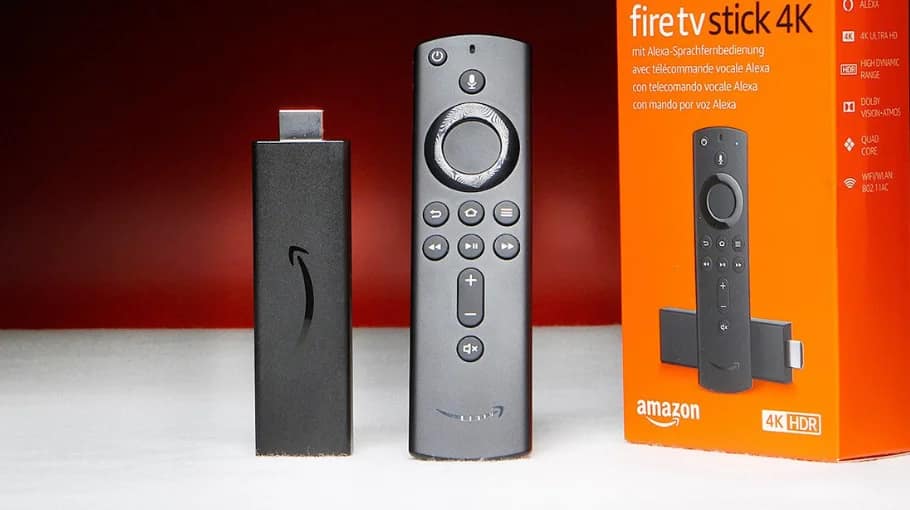
IPTV Firestick setup intimidates beginners, but it’s actually straightforward when you follow the exact steps. I’ve helped hundreds of people set up IPTV on Firestick who’d never done it before.
If you want the full UK overview (providers, trials, what to check before you pay), start here: IPTV UK guide.
For testing before paying, use a trial first: IPTV free trial.
If your main issue is freezing, use: IPTV buffering. If nothing works at all and you suspect outage, check: IPTV down.
What You Need Before Starting
Gather everything first. It makes IPTV Firestick setup smoother and prevents interruptions.
Required Hardware
- Amazon Fire TV Stick (regular or 4K version)
- TV with HDMI port
- Stable internet connection (10+ Mbps for HD)
- Optional (highly recommended): Ethernet adapter
- Remote control (included with Firestick)
Required Information
- Amazon account (free to create)
- Wi-Fi network name and password
- IPTV subscription credentials (username, password, URL)
- Provider details from your IPTV provider research
Recommended: Test Before Subscribing
Get an IPTV free trial first. Testing IPTV on Firestick before paying saves money and avoids disappointment.
Step 1: Initial Firestick Setup
First-time users start here for complete IPTV Firestick setup. Already configured the device? Skip to Step 2.
Physical Connection
- Plug Firestick into the TV’s HDMI port
- Connect the USB power cable to Firestick
- Plug the power adapter into a mains socket
- Turn on the TV
- Select the correct HDMI input on the TV
On-Screen Setup
- Select language (English UK)
- Connect to your Wi-Fi network
- Sign in to your Amazon account (or create one)
- Choose a Firestick name (any name works)
- Save Wi-Fi password when prompted
- Wait for the system update to complete
Step 2: Enable Apps from Unknown Sources
This is a critical step for IPTV on Firestick. Many IPTV apps aren’t in the official store, so you must allow installs safely.
Enable Developer Options
- From the home screen: Settings (gear icon at the top)
- Select “My Fire TV”
- Select “Developer Options”
- Turn on “ADB Debugging” (optional but helpful)
- Turn on “Apps from Unknown Sources” (or “Install Unknown Apps”)
Enable for Downloader App
You’ll install Downloader next. After it’s installed, enable it here:
- Settings > Applications > Manage Installed Applications
- Select “Downloader”
- Turn on permission for “Unknown Sources” / “Install Unknown Apps”
- Confirm the warning message
Step 3: Install Downloader App
Downloader is essential for IPTV Firestick setup. It installs apps not available in the Amazon store.
Download from Amazon Appstore
- Press Home on the remote
- Select the search icon (magnifying glass)
- Type “Downloader” using the on-screen keyboard
- Select “Downloader” by AFTVnews
- Click “Download” / “Get”
- Wait for installation to complete
First Launch Setup
- Open Downloader (click “Open” after install)
- Accept terms and conditions
- Allow permissions when prompted
- You’ll see the URL bar on the main screen (ready to use)
Step 4: How to Install IPTV Smarters Pro on Firestick
IPTV Smarters Pro is a top choice and often considered the best IPTV for Firestick 2026 for beginners: it’s free, feature-rich, and works with most providers.
After you finish this install, optimize performance here: Firestick IPTV settings guide.
Download IPTV Smarters Pro
- Open Downloader
- Click the URL field (cursor blinking)
- Enter: iptvsmarters.com
- Click “Go”
- When the website loads, choose the Android download
- The APK downloads automatically
Install the App
- When prompted “Install this application?” click “Install”
- Wait for the installation (10–20 seconds)
- Click “Done” (not “Open” yet)
- Downloader will ask to delete the APK—click “Delete” (saves storage)
- IPTV Smarters Pro is now installed
Step 5: Configure IPTV Smarters Pro
Now add your IPTV subscription to start watching IPTV on Firestick. You’ll need credentials from your provider.
First Launch Setup
- Go to the Firestick home screen
- Open IPTV Smarters from “Your Apps & Channels”
- Accept terms and conditions
- You’ll see the login options
Add Your IPTV Playlist
Your provider will give you one of these login methods:
Method 1: Xtream Codes API (most common):
- Select “Login with Xtream Codes API”
- Enter username (exactly as provided)
- Enter password
- Enter URL/Server (often without http://)
- Click “Add User”
Method 2: M3U URL:
- Select “Load Your Playlist or File/URL”
- Enter playlist name (any name)
- Paste the M3U URL
- Click “Add”
First Channel Test
- Wait for channel list to load (10–30 seconds)
- Browse categories or search a channel
- Select any channel to test
- It should start playing within ~5–10 seconds
Best IPTV for Firestick 2026 (Alternatives)
IPTV Smarters Pro works for most people, but these alternatives are useful if you want different features for IPTV on Firestick.
TiviMate (Premium Option)
Premium option with excellent EPG. Costs around £4–£5/year. If you want a full guide: TiviMate IPTV Player.
- Superior EPG
- Advanced channel sorting
- Picture-in-picture mode
- Smoother interface
Perfect Player (Free & Lightweight)
Great for older Firestick models with limited resources. Simple interface, reliable playback, minimal storage usage.
OTT Navigator
Solid option with good EPG and channel organization. Works well on Firestick hardware.
Essential Settings After Setup
Default settings aren’t optimized. Change these immediately for smooth IPTV Firestick streaming. For full optimization, use: Firestick IPTV settings guide.
Disable Firestick Data Monitoring
- Settings > Preferences > Data Monitoring
- Turn Off
- Restart Firestick
Adjust IPTV App Buffer Settings
In IPTV Smarters Pro:
- Settings > Player Settings
- Buffer Size > set to 10–15 seconds
- Test streaming and adjust if needed
Disable Notifications
Stop interruptions during streaming:
Settings > Preferences > Notification Settings > Turn Off All App Notifications
Common Setup Mistakes to Avoid
I see these mistakes constantly when helping people with IPTV on Firestick. Avoid them. For general troubleshooting, see: IPTV troubleshooting guide.
Mistake #1: Wrong URL Format
Don’t include “http://” if your provider says to enter the domain + port only.
Wrong: http://example.com:8080
Right: example.com:8080
Mistake #2: Typos in Credentials
One wrong character breaks login. Copy-paste credentials when possible. Watch for spaces and wrong capitalization.
Mistake #3: Using Wi-Fi Instead of Ethernet
Wi-Fi causes most buffering on IPTV Firestick. An ethernet adapter is usually the fastest improvement you can buy.
Mistake #4: Not Testing During Trial
Test the channels you actually watch, and test during peak hours. Trials prevent wasting money.
Mistake #5: Ignoring Storage Space
Full storage causes crashes and buffering. Check: Settings > My Fire TV > About > Storage. Aim for ~1GB free.
Troubleshooting Common Issues
Quick fixes for the most common problems.
App Won’t Install
- Confirm “Unknown Sources” is enabled for Downloader
- Verify internet connection
- Check available storage
- Restart Firestick and try again
Channels Won’t Load
- Double-check credentials (username, password, URL)
- Verify subscription is active
- Test internet speed (10+ Mbps for HD)
- Check if IPTV service is down
Constant Buffering
- Switch to ethernet if possible
- Increase buffer size in app settings
- Close background apps
- Restart Firestick
- Read: complete buffering guide
App Keeps Crashing
- Clear app cache: Settings > Applications > IPTV Smarters > Clear Cache
- Update to the latest version
- Uninstall and reinstall fresh
- Use: IPTV Smarters troubleshooting
FAQ: IPTV Firestick Setup
Is IPTV Firestick setup difficult for beginners?
No. It usually takes 15–20 minutes if you follow the steps: enable unknown sources, install Downloader, install IPTV Smarters Pro, then add your credentials.
What’s the best IPTV for Firestick 2026?
IPTV Smarters Pro for most users (free, feature-rich), TiviMate if you want premium EPG features, and Perfect Player if you want something lightweight. All work well for IPTV on Firestick.
Do I need VPN for IPTV on Firestick?
Not mandatory, but recommended in many setups. VPN can prevent ISP throttling, add privacy, and help with geo-restricted access.
How to install IPTV Smarters Pro on Firestick?
Enable unknown sources, install Downloader, visit iptvsmarters.com in Downloader, download the APK, then install when prompted.
Why does IPTV Firestick buffer constantly?
Usually Wi-Fi interference or speed issues. Ethernet fixes most cases. Also adjust buffer size (10–15 seconds), close background apps, and keep storage free.
Where do I get an IPTV subscription for Firestick?
Research providers carefully and always test first. Start with our IPTV UK guide, then use a free trial to confirm quality on your own Firestick.
Final Setup Tips
IPTV Firestick setup is straightforward when you don’t skip steps. Enable unknown sources first, install Downloader, then install your IPTV player and add credentials carefully.
If you want the single biggest improvement, use ethernet. It eliminates most Wi-Fi buffering issues and makes IPTV on Firestick far more stable.
Finally, test providers properly during a trial (including peak hours). That’s the fastest way to avoid paying for an unreliable service. For deeper optimization after your install, open: Firestick IPTV settings guide.