Skip to content

IPTV Smarters Not Working: Fix It Fast (Checklist)
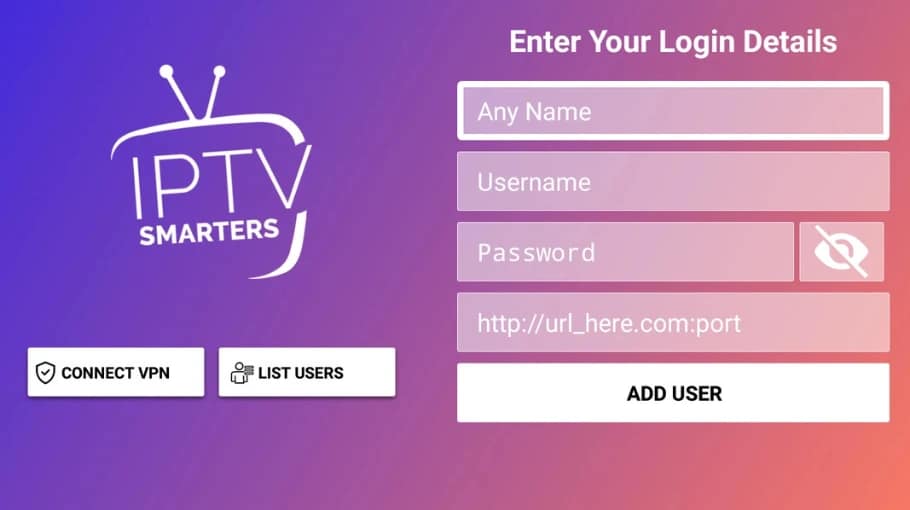
IPTV Smarters not working? Frustrating, especially when you're trying to watch something. I've troubleshot hundreds of Smarters issues over the years, and most problems have quick fixes.
Whether you're dealing with IPTV Smarters not working on Firestick, Samsung TV issues, or LG TV problems, this guide covers the most common fixes step by step.
If you're new to setup or want the full overview, start with our IPTV setup guide.
If the issue is mainly freezing or stutter, this troubleshooting page helps too: IPTV buffering.
You can always return to IPTV Smarters Pro HD as the main hub.
Quick Fix Checklist: Start Here
Before diving into device-specific troubleshooting, try these universal fixes. They solve 80% of problems.
1. Force Close and Restart App
Don't just exit the app. Completely force close it, then restart. This clears temporary glitches causing problems.
How to force close:
- Android/Firestick: Settings > Applications > Manage Apps > IPTV Smarters > Force Stop
- Samsung TV: Hold Return button, select Close All
- LG TV: Press and hold Home button > Close app
- iOS: Swipe up and close app completely
2. Check Internet Connection
IPTV needs stable internet. Test your speed with Fast.com. You need minimum 8-10 Mbps for HD streaming.
If speed is low, restart your router. Unplug for 30 seconds, plug back in, wait 2 minutes for full restart.
3. Clear App Cache and Data
Corrupted cache causes many problems. Clearing it often fixes issues instantly.
How to clear cache:
- Android/Firestick: Settings > Applications > IPTV Smarters > Clear Cache > Clear Data
- Samsung TV: Settings > Apps > IPTV Smarters > Clear Cache
- LG TV: Settings > All Apps > IPTV Smarters > Clear Data
- iOS: Delete and reinstall app (iOS doesn't allow manual cache clearing)
Warning: Clearing data removes saved playlists. Have your login details ready to re-add them.
4. Update IPTV Smarters App
Outdated versions cause compatibility problems. Update to latest version to fix issues.
- Google Play Store: Search IPTV Smarters, tap Update
- Amazon Appstore (Firestick): My Apps > IPTV Smarters > Update
- Samsung/LG TV: Check app store for updates
- iOS App Store: Updates tab > IPTV Smarters > Update
5. Verify Playlist Credentials
Wrong credentials are the most common cause. Double-check your username, password, and URL exactly as provided by your IPTV service.
Watch for extra spaces, wrong capitalization, or missing characters. Copy-paste credentials when possible to avoid typos.
IPTV Smarters Not Working on Firestick: Specific Fixes
Firestick has unique issues. If IPTV Smarters not working on Firestick after trying quick fixes, use these device-specific solutions.
Check Firestick Storage Space
Firesticks have limited storage. Full storage causes apps to crash or not load properly. Check storage: Settings > My Fire TV > About > Storage.
If you have less than 500MB free, delete unused apps or clear app caches. This often fixes app crashes when nothing else works.
Restart Firestick Properly
Don't just unplug it. Proper restart clears system cache.
- Settings > My Fire TV > Restart
- Wait for complete restart (2-3 minutes)
- Open IPTV Smarters and test
Use Ethernet Instead of WiFi
WiFi on Firestick can be unreliable. Get an Ethernet adapter for Firestick for a more stable connection.
Disable VPN Temporarily
VPNs sometimes interfere with IPTV Smarters. If you're using one, disable it temporarily to test. If the app works without VPN, try a different VPN server or exclude IPTV Smarters in split-tunneling (if your VPN supports it).
Reinstall IPTV Smarters
When the app won't work on Firestick after all fixes, complete reinstall often resolves issues.
- Settings > Applications > Manage Apps > IPTV Smarters > Uninstall
- Restart Firestick
- Amazon Appstore > Download IPTV Smarters fresh
- Add playlists again with correct credentials
Firestick guide: IPTV on Firestick.
Samsung TV IPTV Smarters Not Working: Solutions
Samsung TVs have specific compatibility issues. When Samsung TV IPTV Smarters not working, these fixes target Samsung-specific problems.
Check Samsung TV Model Compatibility
IPTV Smarters requires Tizen OS 4.0 or later. Older Samsung TVs (pre-2018) might not support it properly. Check model year: Settings > Support > About This TV.
If your TV is 2017 or older, consider using Firestick or Android box instead.
Update Samsung TV Software
- Settings > Support > Software Update
- Select Update Now
- Wait for update to complete (10-20 minutes)
After updating, Samsung TV IPTV Smarters not working issues often resolve automatically.
Clear Samsung Smart Hub Cache
- Unplug TV from power
- Wait 60 seconds
- Plug back in and power on
- Test IPTV Smarters
Reset Smart Hub
Nuclear option for Samsung TV IPTV Smarters not working. This resets all Smart Hub apps.
- Settings > Support > Self Diagnosis > Reset Smart Hub
- Enter PIN (default: 0000)
- Reinstall IPTV Smarters from Samsung App Store
Warning: This removes all Smart Hub apps. You'll need to reinstall everything.
Use Alternative Player
If IPTV Smarters won't work on Samsung TV after everything, try a different player or use an external device.
Samsung setup help: IPTV Smarters Pro Samsung TV.
IPTV Smarters Not Working on LG TV: Fixes
LG TVs use WebOS, which has different issues than Samsung. When IPTV Smarters not working on LG TV, try these solutions.
Verify LG WebOS Version
IPTV Smarters needs WebOS 3.0 or later. Older LG TVs (pre-2016) won't support it. Check version: Settings > All Settings > General > About This TV.
Update LG TV Firmware
- Settings > All Settings > General > About This TV
- Select Check for Updates
- Install if available
After firmware update, IPTV Smarters not working on LG TV problems often disappear.
Clear LG TV App Data
- Press Home button
- Navigate to IPTV Smarters
- Press and hold OK/Enter
- Select Clear Data or Delete
Power Cycle LG TV Completely
Proper power cycle clears WebOS cache causing IPTV Smarters not working on LG TV.
- Unplug TV from wall socket
- Press power button on TV 5 times (drains residual power)
- Wait 2 minutes
- Plug back in and test
Consider External Device
LG WebOS apps sometimes have persistent compatibility issues. If IPTV Smarters not working on LG TV after all fixes, use Amazon Fire Stick or an Android box instead.
Common Playlist and Login Issues
Many cases of IPTV Smarters not working stem from playlist or credential problems, not the app itself.
Playlist URL Wrong or Expired
IPTV services change URLs or expire subscriptions. Verify your playlist URL is current. Contact your IPTV provider for updated credentials if the playlist won't load.
Maximum Connections Exceeded
IPTV services limit simultaneous connections. If you're using maximum devices, additional ones won't work. Log out from other devices, or upgrade subscription for more connections.
MAC Address Registration Required
Some IPTV services require registering device MAC address before service works. Check with your provider if MAC registration is needed.
Using Wrong Login Method
IPTV Smarters supports multiple login methods: Xtream Codes, M3U URL, M3U Playlist. Using the wrong method causes failures. Verify with your provider which method to use.
If the whole service seems down (not just Smarters), check: IPTV down.
Internet and Connection Problems
Network issues cause many IPTV Smarters not working problems that look like app failures.
Slow Internet Speed
Test with Speedtest.net during problem times. Minimum requirements: 8 Mbps for HD, 25 Mbps for 4K. Lower speeds cause buffering and connection failures.
If speed is fine but playback stutters, revisit: IPTV buffering guide.
WiFi Interference
Crowded WiFi channels cause drops. Switch to 5GHz WiFi if supported, or use ethernet for reliable streaming.
ISP Throttling IPTV Traffic
Some ISPs slow heavy streaming traffic during peak hours. Test at different times. If problems only happen 6-11 PM, your network path may be the cause. Try rebooting the router first, then consider changing WiFi band or using wired ethernet.
Router Needs Restart
- Unplug router from power
- Wait 30 seconds
- Plug back in
- Wait 2-3 minutes for full restart
When to Completely Reinstall
If IPTV Smarters not working after all troubleshooting, complete reinstall is a strong final solution.
Signs You Need Full Reinstall
- App crashes immediately on launch
- Black screen on startup
- Settings won't save
- Playlists disappear randomly
- Interface is corrupted or unresponsive
Proper Reinstall Process
- Write down playlist credentials before starting
- Uninstall IPTV Smarters completely
- Restart device
- Clear system cache if possible
- Download fresh copy from the official app store
- Install and set up from scratch
- Add playlists with verified credentials
If you're troubleshooting on PC, see: IPTV Smarters Pro Windows.
FAQ: IPTV Smarters Troubleshooting
Why is IPTV Smarters not working suddenly?
Common causes: expired subscription, provider server issues, outdated app, corrupted cache, internet problems, or device storage full. Start with the quick fix checklist at the top of this guide.
Why is IPTV Smarters not working on Firestick specifically?
Firestick-specific issues: low storage space, WiFi interference, outdated Firestick OS, or VPN conflicts. Check Firestick storage first, then restart the device properly through settings.
How do I fix Samsung TV IPTV Smarters not working?
Update Samsung TV software first, then clear Smart Hub cache. If problems persist, reset Smart Hub completely. Older Samsung TVs (pre-2018) might not support the app properly.
What causes IPTV Smarters not working on LG TV?
LG WebOS compatibility issues, outdated firmware, or corrupted app data. Update LG TV firmware, power cycle completely, and clear app data. Consider an external streaming device if problems continue.
Should I clear cache or clear data?
Start with clearing cache only. This removes temporary files without deleting saved playlists. If that doesn't fix it, clear data (removes everything and requires re-adding playlists).
How often should I update IPTV Smarters?
Update whenever a new version appears in your app store. Developers fix bugs and improve compatibility regularly. Enable auto-updates if available to prevent issues caused by outdated versions.
Will reinstalling delete my playlists?
Yes. Write down all playlist credentials before reinstalling. You'll need to add playlists again manually after fresh installation. This is why backing up credentials first is critical.
Final Troubleshooting Tips
Look, IPTV Smarters not working is frustrating, but most problems have simple fixes. Work through this checklist systematically rather than randomly trying things.
Start with quick fixes: force close, check internet, clear cache, update app, verify credentials. These solve 80% of issues in minutes.
If quick fixes don't work, move to device-specific troubleshooting. IPTV Smarters not working on Firestick, Samsung TV, or LG TV each have unique solutions.
For comprehensive IPTV guidance beyond troubleshooting, visit our IPTV UK guide. For plans and options, see IPTV subscription UK.
If you want a dedicated “Smarters player” overview, you can also read: IPTV Smarters Player.