Skip to content

IPTV Smarters Player: Full Guide (Login, EPG, Casting, Subtitles)
Everything you need to use Smarters Player properly — setup, best settings, and real fixes.
Already troubleshooting? Jump to: IPTV down or IPTV buffering.
Why IPTV Smarters Player Is So Popular
IPTV Smarters Player is one of the most-used IPTV apps because it’s simple for beginners yet powerful for advanced users. Most people log in once and never touch settings again — which is exactly why they run into issues like buffering, missing EPG, or casting that “doesn’t work”.
Below, you’ll learn the right login method, how to configure EPG correctly, casting steps, subtitle controls, and the settings that make streams smoother.
Getting Started: Download IPTV Smarters Player
Android Devices
- Open Google Play Store
- Search “IPTV Smarters”
- Install the app
- Open it when finished
iPhone / iPad (iOS)
- Open App Store
- Search “IPTV Smarters Player”
- Install and allow permissions
Firestick / Android TV
On Firestick, you typically use Downloader to install the APK. If you’re new to this, follow our beginner setup: IPTV Firestick complete guide. For performance tuning on Amazon devices, also see: Firestick IPTV settings.
Windows PC
For Windows installs and fixes, follow: IPTV Smarters Pro Windows guide. If you’re having Pro issues, use: Smarters Pro not working.
Mac
There isn’t a consistent official Mac app. Use a web player when available, or a compatible IPTV app alternative for macOS.
Login Methods: Choose the Right One
There are three common ways to log in. Your provider tells you which one to use.
Method 1: Xtream Codes API (Best Option)
This is the easiest and most complete method — it loads Live TV, Movies, Series and EPG automatically.
- Open IPTV Smarters Player
- Select Login with Xtream Codes API
- Enter your Username and Password
- Enter your Server URL (usually without
http://) - Tap Add User and wait for channels to load
Method 2: M3U URL
- Select Load Your Playlist or File/URL
- Enter any Playlist Name
- Paste the M3U URL
- Add EPG URL (optional but recommended)
- Save
Method 3: Local M3U File
- Download the M3U file to your device
- Load playlist from file
- Import and wait for parsing
EPG Configuration (Guide + Fixes)
Automatic EPG (Xtream Codes)
EPG normally loads automatically. If it’s empty, wait 30 seconds, then refresh inside EPG settings.
Manual EPG (M3U Users)
- Get the EPG URL from your provider
- Go to Settings → EPG Settings
- Paste the EPG URL
- Enable Auto Update
- Restart the app
EPG Time Shift (Wrong Times)
If EPG shows wrong hours, adjust “EPG Time Shift” (+/- hours) until it matches your timezone.
Casting to TV (Chromecast / AirPlay)
Chromecast
- Phone and Chromecast must be on the same Wi-Fi
- Play a channel
- Tap the Cast icon
- Select your Chromecast device
AirPlay (iPhone/iPad)
- Connect iPhone/iPad and Apple TV to the same Wi-Fi
- Play a channel
- Tap AirPlay and choose your TV
If casting lags or buffers, it’s usually Wi-Fi quality. Use Ethernet on your main device when possible and follow: IPTV buffering fixes.
Subtitles: Enable, Load, Customize
Enable Built-in Subtitles
- Play a channel or VOD
- Tap the screen to open controls
- Tap the CC/Subtitles icon
- Select a language
Load External Subtitle Files (SRT)
- Download the .srt file
- While playing, open subtitle menu
- Select “Load subtitle” and choose the file
Subtitle Appearance
Use Subtitle Settings to adjust size and background for better readability.
Best Player Settings to Reduce Buffering
Buffer Size
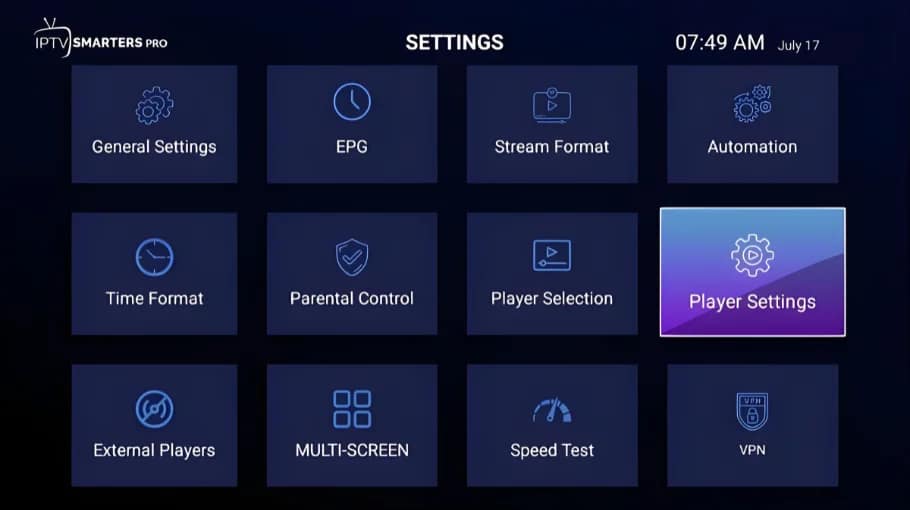
- Settings → Player Settings → Buffer Size
- Switch from Auto to manual
- Wi-Fi: start with 10–15 seconds
- Ethernet: start with 5–10 seconds
External Player (Optional)
If the internal player buffers, try: MX Player or VLC.
Troubleshooting: Quick Fixes
Playlist Won’t Load
- Re-check credentials (no extra spaces)
- Verify subscription is active
- Try Xtream Codes if you used M3U
- Confirm service status: IPTV down guide
App Crashing
- Clear cache (not just force close)
- Update the app
- Restart the device
- If Pro version: see IPTV Smarters Pro not working
Firestick Problems (Install / Performance)
Follow the dedicated Firestick articles: IPTV Firestick setup and Firestick IPTV settings. If you prefer a “mistakes to avoid” version: IPTV on a Firestick.
FAQ: IPTV Smarters Player
Yes. Most features are free. Pro versions add extras (multi-screen, advanced recording), but aren’t required for normal IPTV viewing.
Wait 30 seconds after login, then refresh EPG. If you use M3U, you must add the EPG URL manually. Wrong timezone can also shift times.
Start with 10–15 seconds on Wi-Fi and 5–10 seconds on Ethernet. If you still get freezing, follow: IPTV buffering fixes.
Most of the time it’s a credential typo on Firestick, storage limits, or weak Wi-Fi. Use: IPTV Firestick guide.
Final Tips
To get the best experience from Smarters Player, do 3 things: use the correct login method (Xtream Codes when possible), set a proper buffer size, and make sure your network is stable.
If you’re choosing a plan or need access details, the fastest start is from: Pricing. For UK-specific guidance, keep this bookmarked: IPTV UK guide.