IPTV

Updated 2026 • Samsung Smart TV (Tizen) • Install + setup

IPTV Smarters Pro Samsung TV: Install + Setup (Smart TV)

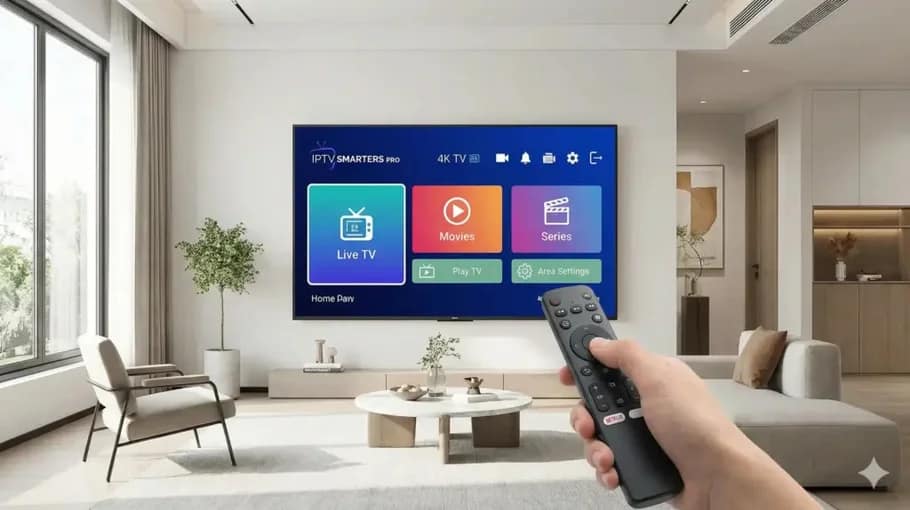
IPTV Smarters Pro Samsung TV install and setup on Smart TV with remote control

Start from the main service overview on our homepage, then use the UK hub: IPTV UK guide. If you’re new, read What Is IPTV?.

IPTV Smarters Pro Samsung TV installation confuses most people. Samsung's Tizen OS doesn't support standard Android apps, requiring different approach. I've helped dozens install IPTV Smarters Pro Samsung TV successfully. This complete guide covers every installation method, proper configuration, and fixes for common Tizen issues. Follow this systematically and you'll have streaming working perfectly on your Samsung television.

View Plans & Pricing Fast activation • Real support • Works on multiple devices
Setup basics: If you want the general steps for any device first, use IPTV setup guide.

Understanding Samsung TV Limitations

Critical to understand before attempting IPTV Smarters Pro Samsung TV installation.

Tizen OS vs Android TV

Samsung Smart TVs run Tizen OS, not Android. Massive difference for IPTV for smart TV installation.

Key differences
  • No Google Play Store access
  • Can't install APK files directly
  • Limited app ecosystem
  • Requires workarounds for most IPTV apps

Which Samsung Models Support IPTV?

Most Samsung Smart TVs from 2016+ work with workarounds. Newer models (2020+) offer better performance.

Check your model
  1. Settings > Support > About This TV
  2. Note model number and year
  3. Verify Tizen version (5.0+ recommended)

Installation Methods for IPTV Smarters Pro Samsung TV

Three methods exist. Choose based on technical comfort level and TV model.

Method 1: Screen Mirroring (Easiest)

Simplest approach for IPTV Smarters Pro Samsung TV. Use phone/tablet to mirror to television.

Requirements
  • Android phone/tablet with IPTV Smarters installed
  • Same WiFi network for TV and phone
  • Samsung Smart View app (optional)
Setup steps
  1. Samsung TV: Settings > General > External Device Manager
  2. Enable Device Connect Manager
  3. Phone: Swipe down > Smart View or Screen Mirroring
  4. Select your Samsung TV
  5. Accept connection on TV
  6. Open IPTV Smarters on phone - appears on TV

Method 2: External Streaming Device (Best Quality)

Most reliable method. Connect Amazon Firestick or Android box to Samsung TV HDMI port.

Why this works best
  • Native Android app support
  • Better performance than mirroring
  • Dedicated remote control
  • No phone battery drain
Setup
  1. Connect device to Samsung TV HDMI port
  2. Select correct HDMI input
  3. Install IPTV Smarters on device (see our Firestick guide)
  4. Stream directly through device

Method 3: Developer Mode Installation (Advanced)

Install IPTV Smarters Pro smart TV app directly on Tizen. Complex but possible.

Warning: Requires technical knowledge. Can potentially void warranty. Not officially supported. Proceed at own risk.
Requirements
  • Samsung Developer account
  • Tizen Studio installed on PC
  • TV and PC on same network
  • Comfort with command line

Process too complex for this guide. Recommend Method 1 or 2 instead for most users.

Configuration After Installation

Setup steps after getting IPTV Smarters Pro Samsung TV working. For complete app features, see our IPTV Smarters Player guide.

Adding Your IPTV Playlist

Same credentials whether using mirroring or external device.

Xtream Codes Login
  1. Open IPTV Smarters
  2. Select 'Login with Xtream Codes API'
  3. Enter provider username
  4. Enter password
  5. Enter server URL (no http://)
  6. Click 'Add User'

Optimizing Settings for Samsung TV

  • Buffer Size: 15-20 seconds (Samsung TVs need higher buffer)
  • Video Quality: Match TV resolution (1080p or 4K)
  • Hardware Acceleration: Disable (can cause issues on Tizen)
  • EPG Auto Refresh: Enable

Common Samsung TV Issues

Specific problems for IPTV Smarters Pro Samsung TV. For general troubleshooting, see our IPTV Smarters not working guide.

Issue 1: Screen Mirroring Lag

Most common complaint. Video stutters or audio out of sync.

Causes
  • Weak WiFi signal
  • Network congestion
  • Phone processing limitations
Solutions
  • Use 5GHz WiFi band
  • Move router closer to TV
  • Close background apps on phone
  • Consider external device instead

Issue 2: TV Can't Find Phone for Mirroring

Connection fails when attempting to mirror.

Solutions
  1. Verify both devices on same WiFi network
  2. Enable Device Connect Manager on Samsung TV
  3. Restart TV and phone
  4. Update Samsung Smart View app
  5. Disable VPN on phone

Issue 3: IPTV Smarters Not Working on Samsung TV via External Device

Firestick or Android box connected but app won't launch or crashes.

Solutions
  1. Verify HDMI connection secure
  2. Try different HDMI port
  3. Clear app cache on device
  4. Update app to latest version
  5. Restart external device

Issue 4: Poor Video Quality

Pixelated or blurry video on IPTV Smarters Pro Samsung TV.

Checks
  • Check internet speed (need 25+ Mbps for 4K)
  • Verify TV input resolution settings
  • Test different channels
Fix

Issue 5: EPG Not Loading

Program guide shows blank on IPTV for smart TV.

Solutions
  1. Wait 30-60 seconds after login
  2. Settings > EPG Settings > Refresh EPG
  3. Check timezone settings
  4. Verify provider includes EPG

Samsung TV Network Optimization

Critical for smooth streaming on IPTV Smarters Pro Samsung TV.

Use Wired Connection

Ethernet dramatically improves reliability. Most Samsung TVs have ethernet port on back.

  1. Connect ethernet cable from router to TV
  2. Settings > General > Network > Network Status
  3. Verify wired connection active
  4. TV automatically prioritizes wired over WiFi

Optimize WiFi Settings

If ethernet not possible:

  1. Settings > General > Network > Open Network Settings
  2. Select Wireless > Choose 5GHz network
  3. Advanced Settings > IP Settings > DNS > Manual
  4. Enter Google DNS (8.8.8.8)

Test Internet Speed

Verify speed directly on Samsung TV:

  1. Open Samsung Internet browser
  2. Visit fast.com
  3. Wait for automatic speed test
  4. Need 25+ Mbps for HD, 50+ Mbps for 4K

Alternative IPTV Apps for Samsung TV

If IPTV Smarters Pro Samsung TV setup proves difficult, alternatives exist.

SS IPTV

Native Tizen app available in Samsung App Store. Simpler than Smarters but works.

Installation
  1. Press Smart Hub button
  2. Search 'SS IPTV'
  3. Install from Samsung Apps
  4. Add M3U playlist URL

Smart IPTV

Paid app (one-time £5-£6). Available for Tizen. Good alternative.

Benefits
  • Native Samsung TV app
  • No external devices needed
  • Decent EPG support

FAQ: IPTV Smarters Pro Samsung TV

Not easily. Samsung uses Tizen OS, not Android. Best methods: screen mirroring from phone or connecting Firestick/Android box to HDMI port. External device gives best results.
Usually network issues. Ensure TV and phone on same WiFi (5GHz preferred). Enable Device Connect Manager in TV settings. Restart both devices. Weak signal causes connection failures.
For native Tizen: SS IPTV (free) or Smart IPTV (£6). For best experience: Connect Firestick to Samsung TV and use IPTV Smarters normally. External device eliminates Tizen limitations.
Yes, slightly. Mirroring compresses video for transmission. Strong WiFi minimizes quality loss. Wired external device always gives better quality than wireless mirroring.
Absolutely. Firestick offers full Android app support, better performance, dedicated remote. Samsung native apps are limited. A Firestick transforms any TV into a full streaming device.
Want to choose a plan now? Visit plans & pricing.

Final Samsung TV Setup Recommendations

Look, IPTV Smarters Pro Samsung TV installation isn't straightforward because Samsung chose Tizen over Android. Not your fault, just Samsung's ecosystem decision. Screen mirroring works okay for occasional viewing. Quick setup, no extra hardware. But expect slight lag and quality compromise. External device is genuinely better solution. Firestick gives you proper Android app ecosystem, better performance, dedicated remote. Plus works on any TV you own. If going external route, use ethernet connection. Samsung TV ethernet port on back. Cable eliminates WiFi issues completely. For mirroring, 5GHz WiFi essential. 2.4GHz too slow for smooth video transmission. Router close to TV makes massive difference.

For comprehensive IPTV guidance and provider recommendations, visit our IPTV UK guide and homepage.

Samsung TVs are brilliant televisions. Just not designed for sideloading Android apps. Work with that limitation using methods above and streaming works perfectly.

Oliver Kenton Ashford profile photo
Oliver Kenton Ashford

Writer & Blogger

Scroll to Top