IPTV

Updated 2026 • Android TV / Firestick • Best setup + EPG tips

TiviMate IPTV Player: Best Setup + EPG Tips (Android TV)

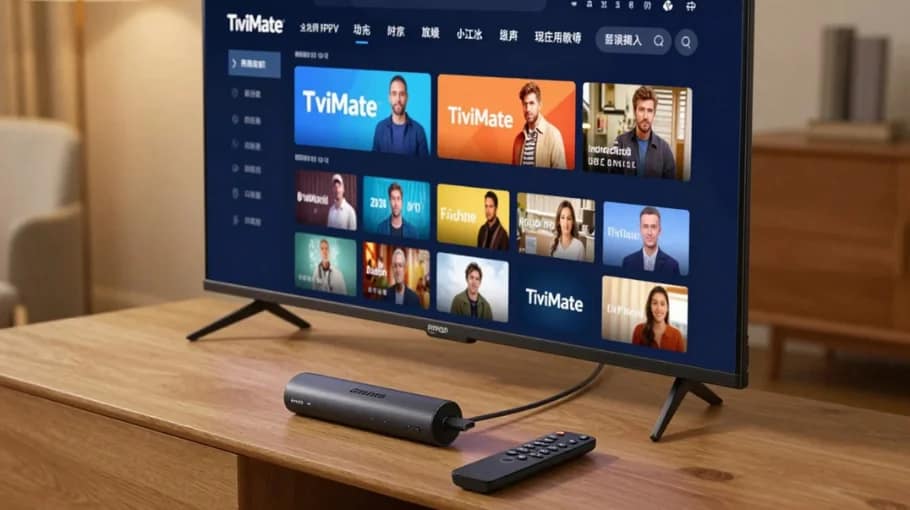
TiviMate IPTV Player setup on Android TV with EPG guide interface displayed on a smart TV

TiviMate IPTV Player is one of the strongest IPTV players for Android devices — mainly because the EPG is clean, the interface feels like a real streaming service, and the settings let you optimize everything. If you’re new, start with What Is IPTV?, then use our main hub: IPTV UK guide.

Want IPTV that runs smoothly on Android TV and Firestick? Compare plans on Pricing and set up the player correctly using the steps below.

Get Access on Pricing Fast activation • Real support • Works on Android TV & Firestick

Why TiviMate IPTV Player Is Brilliant

Most IPTV apps are functional but messy. TiviMate feels like a premium TV interface: smooth navigation, a clean EPG, and powerful customization. If you want a broader comparison of apps by device, check: Best IPTV Player guide.

What Makes It Different

  • Excellent EPG experience (fast, clear, customizable)
  • Multiple playlist support
  • Recording and timeshift (premium)
  • Catch-up TV support (provider-dependent)
  • 4K capable (device + provider dependent)
  • Clean interface and smooth browsing

Free vs Premium

The free version works well for a single playlist. Premium unlocks features like recording, timeshift, and multiple playlists.

Compatible Devices

  • Android TV boxes
  • Amazon Firestick (Android-based)
  • NVIDIA Shield
  • Android phones/tablets
  • Chromecast with Google TV
Tip: For Firestick performance settings, use Firestick IPTV best settings.

How to Setup TiviMate IPTV Player

Installation is straightforward on Android TV devices. If you’re installing on Firestick and want the full beginner path, follow: IPTV Firestick setup guide.

Method 1: Downloader App

  1. Install Downloader (from your device store)
  2. Enable installing apps from unknown sources (device settings)
  3. Open Downloader
  4. Enter the official download page: tivimate.com/download
  5. Download and install
  6. Launch the app

Method 2: Direct APK Download

  1. Download the APK (official source)
  2. Transfer to USB drive
  3. Insert USB into your Android device
  4. Open with a file manager
  5. Install and launch

Adding Your IPTV Playlist

TiviMate supports common formats. Xtream Codes is usually the easiest because it often pulls EPG and organizes content automatically.

Xtream Codes API

  1. Launch TiviMate
  2. Click “Add Playlist”
  3. Select “Xtream Codes”
  4. Enter playlist name
  5. Enter server URL (without http://)
  6. Enter username and password
  7. Click “Next” to load

M3U URL

  1. Click “Add Playlist”
  2. Select “M3U URL”
  3. Name the playlist
  4. Paste M3U URL
  5. Optionally add EPG URL (recommended)
  6. Save and load channels

Best TiviMate Settings + EPG Tips

Good settings reduce buffering and make the EPG feel instant. If freezing is your main issue, use: IPTV buffering fixes.

Playback Settings

  • Buffer Size: Wi-Fi: 10–15s • Ethernet: 5–10s
  • Decoder: Hardware (newer devices) • Software (older devices)

EPG Configuration

Automatic EPG (Xtream Codes)
  1. Settings → EPG
  2. Check your provider EPG source
  3. Update interval: 4–6 hours
  4. Enable auto-update
Manual EPG (M3U users)
  1. Settings → EPG → Add EPG source
  2. Paste EPG URL from provider
  3. Set timezone correctly
  4. Force refresh

Interface Customization

  • Appearance → Theme (Dark / True Black for OLED)
  • Appearance → EPG (grid size, time scale, transparency)

Advanced Features

Recording Setup

  1. Settings → Recording
  2. Choose storage location (USB recommended)
  3. Open EPG and select a program → Record
  4. Access recordings from the app menu

Timeshift Function

  1. Settings → General → Timeshift
  2. Enable timeshift
  3. Choose buffer length and storage
  4. Pause/rewind live TV when needed

Multiple Playlists

  • Add multiple playlists (premium)
  • Merge/organize channels into custom groups
  • Switch providers quickly

Common Issues and Fixes

If your device is Firestick and performance is inconsistent, also review: IPTV on a Firestick (common mistakes).

EPG not loading
EPG
Symptoms
  • Guide is blank or outdated
  • No “now/next” info
  • Wrong times displayed
Solutions
  1. Wait 30–60 seconds after adding the playlist
  2. Settings → EPG → Force refresh
  3. Check timezone matches your location
  4. Verify provider includes EPG
  5. Delete and re-add playlist if needed
Constant buffering
Playback
Symptoms
  • Video pauses every few seconds
  • Quality drops during peak hours
  • Streams fail on some channels only
Solutions
  1. Increase buffer to 15–20 seconds
  2. Switch to ethernet if possible
  3. Try software decoder
  4. Test a few channels to isolate provider vs device
  5. Close background apps and downloads
Recording fails
Premium
Symptoms
  • Recording starts then stops
  • No file saved
  • Storage error message
Solutions
  1. Confirm premium is active
  2. Use a USB drive with free space
  3. Set recording path correctly
  4. Restart app and device
SEO + trust tip: If you’re comparing providers, use our quality checklist: Best IPTV UK Provider (what premium means).

TiviMate vs Other IPTV Players

Compared to IPTV Smarters Pro

  • TiviMate strengths: superior EPG, cleaner UI, recording/timeshift (premium)
  • Smarters strengths: free, wide device support (including iOS)

Compared to Smart IPTV

  • TiviMate strengths: more features, better EPG, active updates
  • Smart IPTV strengths: native Smart TV support, one-time app payment

FAQ: TiviMate IPTV Player

Yes. The free version supports a single playlist. Premium unlocks multiple playlists, recording and timeshift.
Wait a minute after adding your playlist, then force refresh in Settings → EPG. Timezone settings are the most common cause of wrong/blank EPG.
Wi-Fi: 10–15 seconds is a good start. If you buffer during peak hours, raise it to 15–20 seconds. Ethernet can run smoothly at 5–10 seconds.
No. TiviMate is a player. You need an IPTV provider playlist (M3U or Xtream Codes) separately.

Final Thoughts

TiviMate is a top choice on Android TV because the EPG feels fast and organized. For best results: use Xtream Codes when possible, set buffer correctly, keep timezone accurate, and optimize your device/network. If you need to validate quality before committing, use our IPTV free trial checklist.

Next step: Choose the plan that matches your devices on Pricing.
Oliver Kenton Ashford profile photo
Oliver Kenton Ashford

Writer & Blogger

Scroll to Top